

Managing Artists
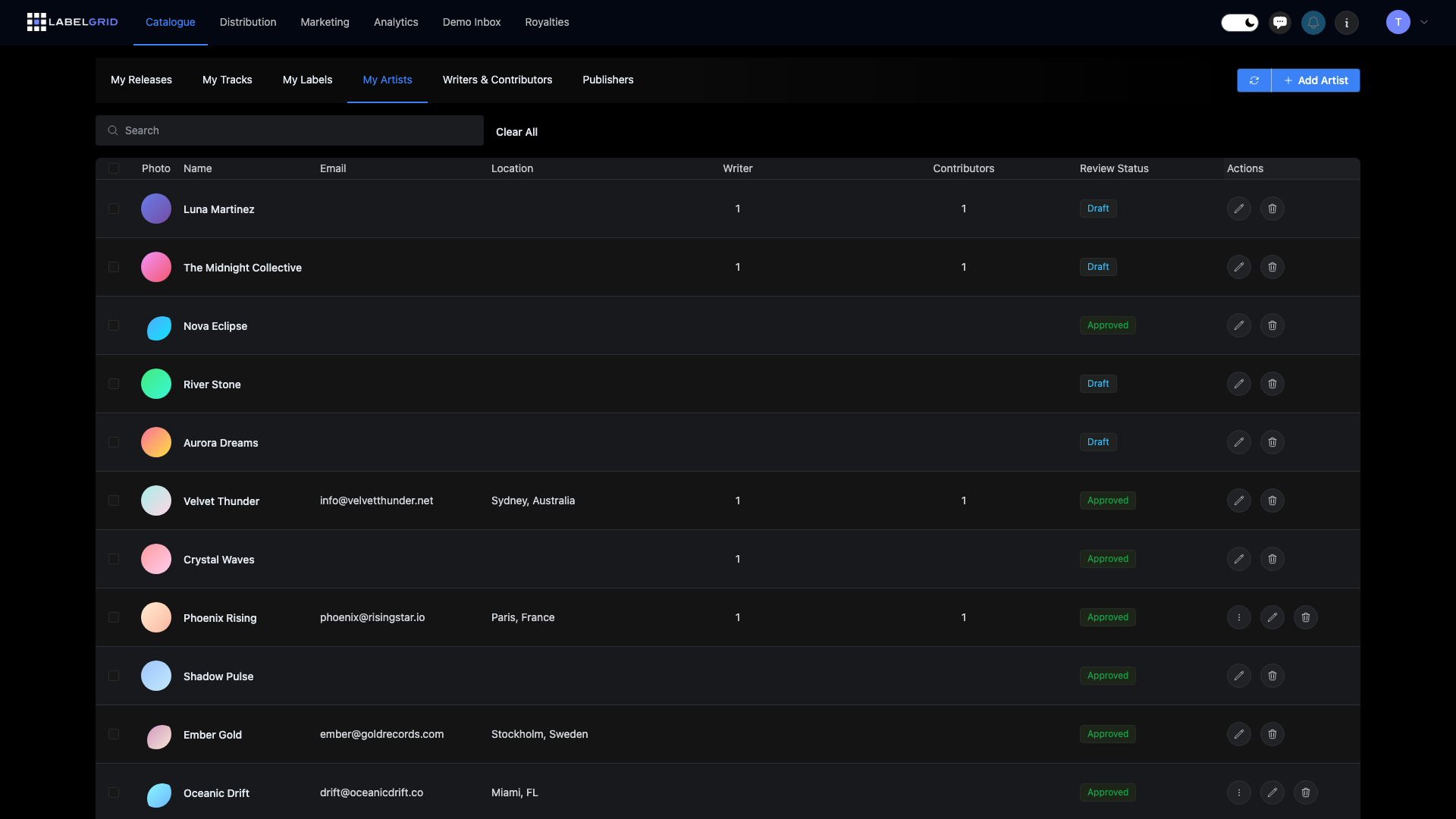
Artists are the creative identities behind your music. Every release needs at least one primary artist, and managing your artist profiles properly ensures your music appears correctly across all streaming platforms.
Why Artist Management Matters
Section titled “Why Artist Management Matters”- Streaming profiles - Proper artist setup enables linking to Spotify, Apple Music, and other platforms
- Discovery - Consistent artist names help fans find all your music
- Analytics - Linked profiles give you access to streaming analytics
- Professional appearance - Complete profiles with bios and images look professional
Creating an Artist
Section titled “Creating an Artist”To create a new artist in LabelGrid:
- Navigate to Catalogue → My Artists in the main menu
- Click Add Artist
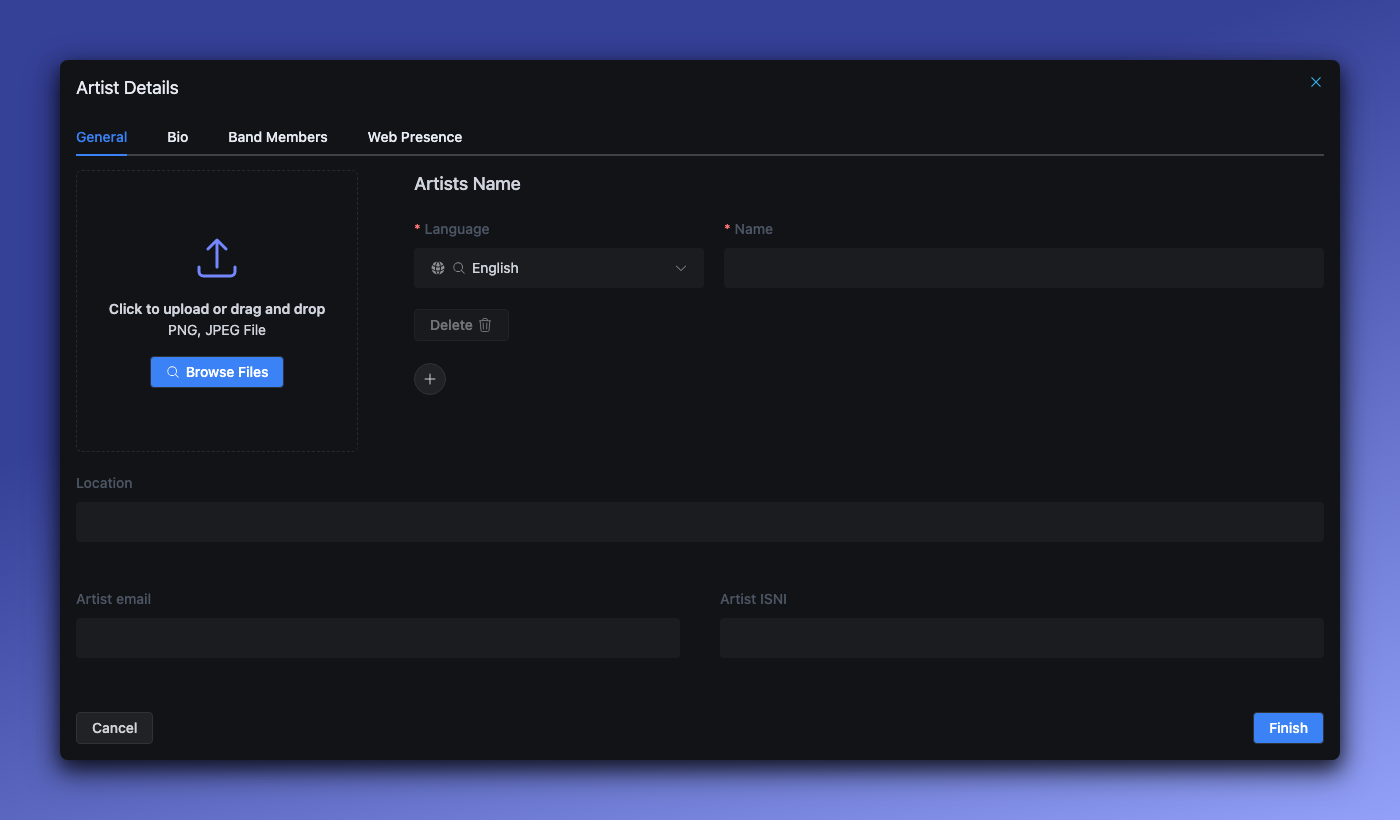
- The artist form opens with four tabs: General, Bio, Band Members, and Web Presence
- Fill in the required information on the General tab:
- Language - Select the primary language for this artist profile
- Name - The official artist name as it should appear on releases
- Complete optional fields as needed:
- Location - City, country, or region
- Artist email - Contact email
- Artist ISNI - International Standard Name Identifier (if available)
- Click Finish to save the artist profile
Artist Name Guidelines
Section titled “Artist Name Guidelines”| Do | Don’t |
|---|---|
| Use the official artist name | Add descriptors like “[Official]“ |
| Be consistent across releases | Use different spellings |
| Include proper capitalization | USE ALL CAPS |
| Use accents and special characters | Replace with ASCII equivalents |
Prohibited Artist Names
Section titled “Prohibited Artist Names”Streaming platforms prohibit generic artist names. These cannot be used:
| Category | Prohibited Examples |
|---|---|
| Sleep/Relaxation | Sleep Music, Rain Sounds, White Noise, Nature Sounds |
| Fitness | Workout Music, Gym Beats |
| Mood | Meditation, Relaxation, Chill, Lo-Fi Beats |
| Seasonal | Christmas Hits, Holiday Music |
| SEO Terms | Top Hits, Best Songs, Popular Music |
Spotify policy: Content using generic artist names may be removed from the platform. Use your actual artist or project name instead.
Artist Profile Information
Section titled “Artist Profile Information”A complete artist profile includes fields organized across four tabs:
General Tab (Required)
Section titled “General Tab (Required)”| Field | Required | Description |
|---|---|---|
| Language | Yes | Primary language for artist profile and metadata |
| Name | Yes | Official artist name (2-64 characters) |
| Location | No | City, country, or region |
| Artist email | No | Contact email for the artist |
| Artist ISNI | No | International Standard Name Identifier (16 characters) |
Bio Tab
Section titled “Bio Tab”| Field | Description |
|---|---|
| Affiliations | Labels, radio programs, crews, and other affiliations |
| Bio short | Brief biography (1-3 sentences) for quick display |
| Bio long | Extended biography for promotional use |
Band Members Tab
Section titled “Band Members Tab”For groups, you can add individual band member information here.
Web Presence Tab
Section titled “Web Presence Tab”Required social profile verification for major platforms:
| Platform | Options |
|---|---|
| Provide link or confirm “No, I am not on Facebook” | |
| Provide link or confirm “No, I am not on Instagram” | |
| Spotify | Provide link or confirm “No, I am not on Spotify” |
| Apple Music | Provide link or confirm “No, I am not on Apple Music” |
Why this is required: Streaming platforms use these links to verify artist identity and connect profiles.
Platform URL Fields
Section titled “Platform URL Fields”Link your artist profile to streaming and social platforms:
| Platform | URL Format |
|---|---|
| Website | Your official website |
| Spotify | Must contain “spotify.com” |
| Apple Music | Must contain “music.apple.com” or “itunes.apple.com” |
| YouTube | YouTube channel URL |
| SoundCloud | SoundCloud profile URL |
| Beatport | Beatport artist URL |
| Juno | Juno Download artist URL |
| Bandcamp | Bandcamp artist URL |
| Facebook page URL | |
| Instagram profile URL | |
| X (formerly Twitter) | X profile URL |
Artist Bio Tips
Section titled “Artist Bio Tips”- Keep it concise (150-300 words)
- Write in third person
- Include notable achievements
- Update regularly with new releases
- Avoid excessive promotional language
Linking to Streaming Profiles
Section titled “Linking to Streaming Profiles”Linking your LabelGrid artist to streaming platform profiles enables:
- Automatic profile updates with new releases
- Access to platform-specific features
- Claiming artist profiles for analytics access
Supported Platforms
Section titled “Supported Platforms”| Platform | Link Type |
|---|---|
| Spotify | Spotify Artist URI |
| Apple Music | Apple Music Artist ID |
| YouTube Music | YouTube Channel ID |
| Deezer | Deezer Artist ID |
| Amazon Music | Amazon Music Artist ID |
How to Link Profiles
Section titled “How to Link Profiles”- Open the artist profile in LabelGrid
- Find the Platform Links or External IDs section
- Enter the artist ID from each platform
- Save your changes
Finding Your Platform IDs
Section titled “Finding Your Platform IDs”Spotify:
- Open Spotify and go to your artist page
- Click the three dots > Share > Copy Spotify URI
- The URI looks like:
spotify:artist:1234abcd
Apple Music:
- Open Apple Music artist page in a browser
- Copy the artist ID from the URL
- Format:
https://music.apple.com/.../artist/name/123456789
Artist Types
Section titled “Artist Types”Primary Artist
Section titled “Primary Artist”The main credited artist on a release. Every release needs at least one primary artist.
Featured Artist
Section titled “Featured Artist”A collaborating artist credited on specific tracks, not the entire release. Featured artists appear as “feat.” in track listings.
Remixer
Section titled “Remixer”An artist who created a remix version of a track. Credited on remix tracks only.
Composer/Producer
Section titled “Composer/Producer”Behind-the-scenes credits that appear in detailed credits, not the main artist listing.
Various Artists
Section titled “Various Artists”“Various Artists” is a system-generated designation — you should never add it as an artist name manually. When a release includes tracks from multiple different main artists (such as a compilation), LabelGrid automatically determines when to display “Various Artists” at the release level based on the number of unique main artists.
How compilations work:
- Each track has its own main artist(s), added at the track level
- The system aggregates all unique main artists across the release
- “Various Artists” appears automatically when appropriate
- All individual artists remain credited on their respective tracks
Tip: Spotify displays “Various Artists” on releases with 5 or more main artists. For full details on setting up compilations and VA releases, see Creating a Release.
Multiple Artist Names
Section titled “Multiple Artist Names”Some artists have multiple identities:
Aliases and Side Projects
Section titled “Aliases and Side Projects”If you release music under different names:
- Create separate artist profiles for each name
- Link each to their respective streaming profiles
- Each can build its own following
Artist Name Changes
Section titled “Artist Name Changes”If you’re changing your artist name:
- Create a new artist profile with the new name
- Use the new profile for future releases
- Keep the old profile for legacy releases
- Consider adding “formerly known as” to bio
Groups vs Solo
Section titled “Groups vs Solo”If you’re both a solo artist and part of a group:
- Create separate profiles for each
- Each gets its own streaming profile link
- Releases credited appropriately to each
Artist Images
Section titled “Artist Images”Image Requirements
Section titled “Image Requirements”| Specification | Requirement |
|---|---|
| Dimensions | Minimum 1000 × 1000 pixels |
| Format | JPG or PNG |
| Aspect ratio | Square (1:1) recommended |
| File size | Under 10 MB |
Image Guidelines
Section titled “Image Guidelines”- Use high-quality, professional images
- Ensure the artist is clearly visible
- Avoid excessive text or graphics
- Update images periodically to stay current
- Maintain consistency across platforms
Managing Multiple Artists
Section titled “Managing Multiple Artists”If you manage multiple artists (as a label or manager):
Organization Tips
Section titled “Organization Tips”- Use consistent naming conventions
- Keep artist information up to date
- Link all profiles to streaming platforms
- Maintain image assets for each artist
Permissions
Section titled “Permissions”Different account types may have different artist management capabilities:
- Artist accounts typically manage one primary artist
- Label accounts can manage multiple artists
- Verify your permissions if you can’t create artists
Troubleshooting
Section titled “Troubleshooting”Artist doesn’t appear on streaming platform
Section titled “Artist doesn’t appear on streaming platform”- Verify the release has been delivered successfully
- Check that the artist name matches exactly
- Allow processing time (varies by platform)
- If linking to existing profile, ensure ID is correct
Duplicate artists on platforms
Section titled “Duplicate artists on platforms”This happens when artist names don’t match exactly:
- Ensure consistent spelling across all releases
- Contact platform support to merge duplicates
- See Claiming Your Artist Profiles for help
Can’t link to streaming profile
Section titled “Can’t link to streaming profile”- Verify you have the correct platform ID
- Check that the profile belongs to you
- Some platforms require verification before linking
- Contact support if issues persist
Best Practices
Section titled “Best Practices”- Create profiles before releasing - Set up artist profiles before your first release
- Be consistent - Use identical spelling across all releases
- Complete your profile - Fill in bio, image, and all available fields
- Link platforms early - Connect streaming profiles as soon as possible
- Keep information current - Update bios and images regularly
- Claim your profiles - Verify ownership on streaming platforms for analytics access
Related Guides
Section titled “Related Guides”- Claiming Your Artist Profiles - Verify and manage your streaming profiles
- Creating a Release - Add artists to your releases
- Metadata Style Guide - Artist name formatting rules
Need Help?
Section titled “Need Help?”If you have questions about artist management or need help linking profiles, contact our support team.
Not using LabelGrid yet?
Everything you just read about is available on our platform.
See what LabelGrid can do →