

Managing Labels
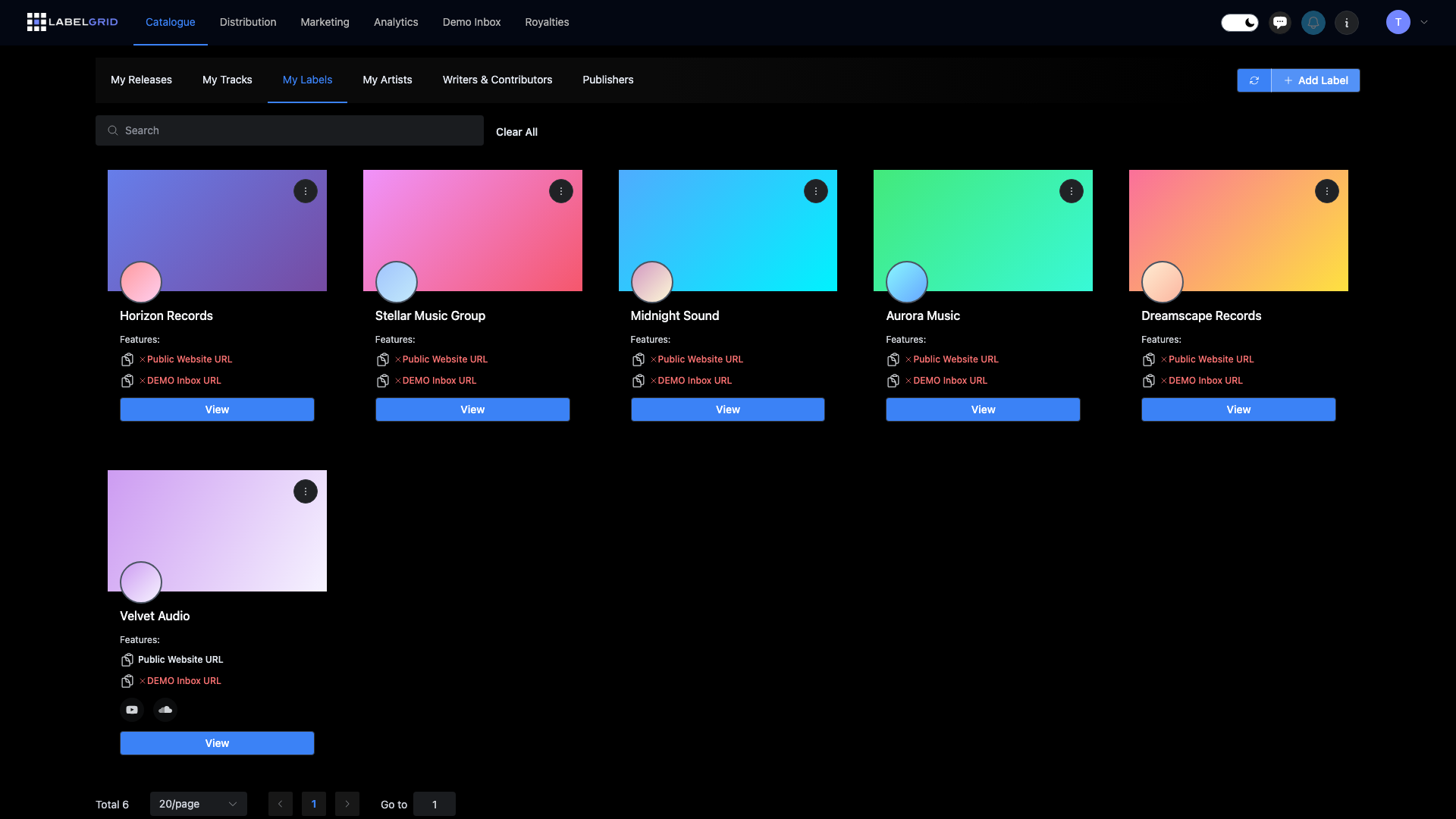
Labels are the imprints or brands under which music is released. Every release requires a label—even independent artists release under a label name, which often is their own name or a self-created imprint.
Why Labels Matter
Section titled “Why Labels Matter”- Copyright credits - Your label name appears in ℗ (P-line) and © (C-line) credits
- Organization - Group and filter releases by label
- Branding - Build recognition for your imprint
- Store presence - Label pages exist on some streaming platforms
Creating a Label
Section titled “Creating a Label”To create a new label in LabelGrid:
- Navigate to Catalogue → My Labels
- Click Add Label
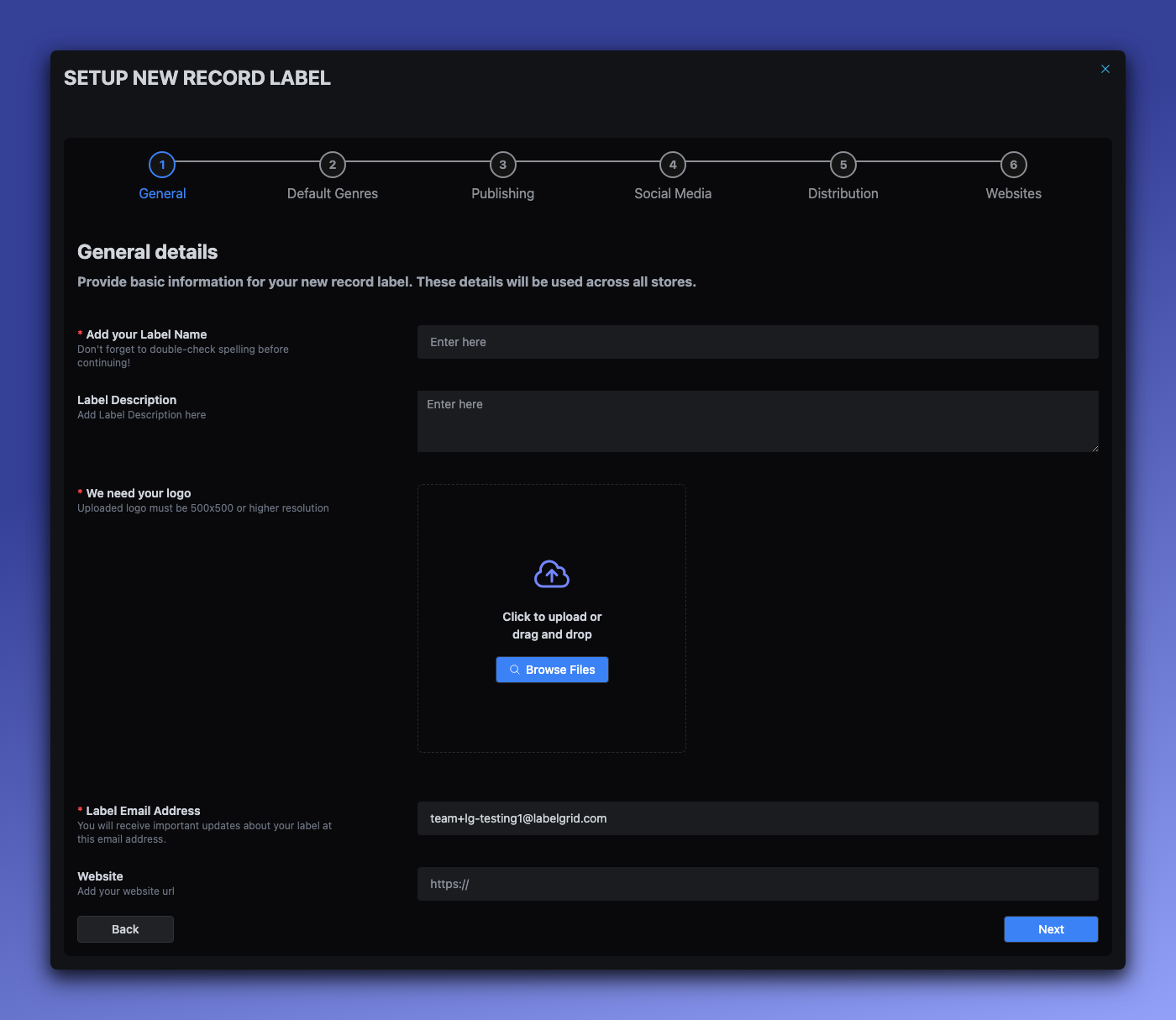
- The label setup wizard guides you through multiple steps:
- General Details - Label name, logo, email, and website
- Default Genres - Primary and secondary genre defaults
- Publishing & Copyright - P-line, C-line, publishers, and copyright owners
- Social Media - Links to your social profiles
- Distribution Settings - Enable platforms like Beatport, YouTube Music, and monetization services
- Beatport Setup (if enabled) - Genre selection and Beatport-specific information
- Public Websites - Enable public label page and demo inbox
- Click Next to move through each step
- Click Submit to save the label profile
For detailed instructions on each wizard step, see Creating a Label.
Label Name Guidelines
Section titled “Label Name Guidelines”| Do | Don’t |
|---|---|
| Use the official label name | Add “Records” if not part of the name |
| Be consistent across releases | Change spelling between releases |
| Use proper capitalization | USE ALL CAPS |
| Keep it professional | Use informal nicknames |
Do I Need a Label?
Section titled “Do I Need a Label?”Yes - every release distributed through LabelGrid requires a label. Here’s how different users approach this:
For Independent Artists
Section titled “For Independent Artists”If you’re an independent artist without a label:
- Use your artist name - “Luna Martinez” as both artist and label
- Create a simple imprint - “Luna Martinez Music” or “LM Records”
- Invent a brand - Create a label name that represents your music
For Labels
Section titled “For Labels”If you run a record label:
- Create your main label profile
- Add sub-labels or imprints as needed
- Organize releases under the appropriate imprint
For Distribution Clients
Section titled “For Distribution Clients”If you distribute music for multiple labels:
- Create separate label profiles for each client
- Maintain their branding correctly
- Keep catalogs organized by label
Editing a Label
Section titled “Editing a Label”After creating a label, you can edit all settings plus access additional options not available in the wizard.
Opening the Edit Form
Section titled “Opening the Edit Form”- Navigate to Catalogue → My Labels
- Click on the label you want to edit
- Click Edit
- The edit form displays all settings organized in tabs
Edit Form Tabs
Section titled “Edit Form Tabs”The label edit form has nine tabs with comprehensive settings:
Main Information Tab
Section titled “Main Information Tab”Core label details and default settings.
| Field | Required | Description |
|---|---|---|
| Label Name | Yes | Your label’s official name |
| Short Name | No | Abbreviated name for compact displays |
| Tagline | No | Brief slogan (e.g., “Elevating Artists, Amplifying Dreams”) |
| Label Introduction | No | Short bio for quick descriptions |
| Label Description | No | Full description of your label |
| Label Email Address | Yes | Primary contact email |
| Default Primary Genre | No | Auto-fills on new releases |
| Default Secondary Genre | No | Auto-fills on new releases |
Images Tab
Section titled “Images Tab”Visual assets for your label.
| Field | Required | Description |
|---|---|---|
| Logo (Light Color) | Yes | Main logo, minimum 500×500px |
| Logo (Dark Color) | No | Logo variant for dark backgrounds, minimum 500×500px |
| Landing Page Background | No | Wide format image for your public page |
Website Tab
Section titled “Website Tab”Public website and demo inbox settings.
| Field | Description |
|---|---|
| Website URL | Your external label website |
| Podcast URL/RSS | Podcast feed (SoundCloud or Mixcloud links work) |
| Enable Public Website | Toggle your sites.labelgrid.com page |
| Enable Public One-Sheet | Toggle shareable release info pages |
| Enable Stripe Cart | Enable checkout for fan purchases |
| Enable Email Opt-in Form | Collect mailing list subscribers |
| Enable Demo Inbox | Public demo submission page |
| Enable Name-Your-Price | Let fans pay what they want (requires Stripe cart) |
Retail Tab
Section titled “Retail Tab”Distribution services and monetization settings.
| Field | Description |
|---|---|
| Enable Shopping Cart | Turn one-sheets into shop pages with PayPal |
| YouTube Music Enabled | Distribute to YouTube Music |
| YouTube Monetization Enabled | Enable YouTube Content ID |
| SoundCloud Monetization Enabled | Enable SoundCloud monetization |
| ACRCloud Enabled | Audio fingerprinting service |
| Audible Magic Enabled | Audio fingerprinting service |
| Audible Magic Licensing Enabled | Licensing360 sync licensing |
| Beatport Enabled | Enable Beatport distribution (see below) |
| ISRC Base | Your ISRC registrant code (leave blank if unknown) |
Contact Tab
Section titled “Contact Tab”Email addresses for different departments.
| Field | Description |
|---|---|
| Email Address | Primary email for receiving/sending |
| Promo ‘From’ Email | Sender address for promotional emails |
| Sales Email | Sales inquiries |
| Dropbox Email | Demo submission notifications |
| Accounting Email | Financial communications |
| Support Email | Support inquiries |
Clips & Video Tab
Section titled “Clips & Video Tab”Default settings for SoundCloud and YouTube uploads.
| Field | Description |
|---|---|
| Default Clip Start | Where audio clips begin |
| Default Clip Length | Duration of clips (blank for full length) |
| Default Video Layout | Visual template for YouTube videos |
| Default Video Length | Duration for auto-generated videos |
Copyright & Publishing Tab
Section titled “Copyright & Publishing Tab”Default copyright and publishing information.
| Field | Required | Description |
|---|---|---|
| Publisher(s) | Yes | Publisher names with optional splits and territories |
| Copyright Owner(s) | Yes | Copyright owner names with optional splits |
| Copyright Name (C-Line) | Yes | Composition/lyrics copyright |
| Copyright Name (P-Line) | Yes | Sound recording copyright |
More Tab
Section titled “More Tab”Additional settings and catalog configuration.
| Field | Description |
|---|---|
| Catalog Number Prefix | Text prefix for catalog numbers (e.g., “TOOL”) |
| Catalog Number Format | Format string (e.g., “TOOL%1$03d” produces TOOL001) |
| Allow Previews Before Release Date | Show or hide unreleased content |
| Enable Automatic Distribution | Auto-distribute to new DSPs |
| AudibleMagic Licensing360 | Enable sync licensing service |
| Default Master Split for Label | Default percentage for label royalty share (typically 50%) |
Social Media Tab
Section titled “Social Media Tab”Links to your label’s social media profiles.
| Field | Format |
|---|---|
| Facebook URL | Full URL |
| Bandcamp URL | Full URL |
| X ID | Just the ID (not full URL) |
| Instagram URL | Full URL |
| SoundCloud URL | Full URL |
| Spotify URL | Full URL |
| Beatport URL | Full URL |
| YouTube URL | Full URL |
Copyright Lines (P-Line and C-Line)
Section titled “Copyright Lines (P-Line and C-Line)”Your label name appears in the copyright credits on every release:
P-Line (℗)
Section titled “P-Line (℗)”The P-line protects the sound recording (master recording).
Format: ℗ 2026 Your Label Name
This credits who owns or controls the recording itself.
C-Line (©)
Section titled “C-Line (©)”The C-line protects the artwork and packaging.
Format: © 2026 Your Label Name
This credits who owns the visual/packaging elements.
How Copyright Lines Are Set
Section titled “How Copyright Lines Are Set”In LabelGrid, copyright information is typically:
- Auto-generated from your label name and release year
- Customizable if the recording/artwork owner differs from the label
- Required for all releases
Who Should Be Credited?
Section titled “Who Should Be Credited?”| Scenario | P-Line | C-Line |
|---|---|---|
| You own everything | Your label | Your label |
| Licensed recording | Original label or as agreed | Your label (if you made artwork) |
| Compilation | Various or your label | Your label |
Multiple Labels and Imprints
Section titled “Multiple Labels and Imprints”Many organizations operate multiple label imprints:
Why Have Multiple Imprints?
Section titled “Why Have Multiple Imprints?”- Genre separation - Different labels for different styles
- Artist branding - Vanity labels for specific artists
- Business structure - Separate entities for legal/accounting
- Acquired catalogs - Maintaining original label names
Managing Multiple Labels
Section titled “Managing Multiple Labels”- Create separate label profiles for each imprint
- Assign releases to the appropriate label
- Keep branding consistent within each label
- Use filtering to manage each catalog
Example Structure
Section titled “Example Structure”Main Label (Horizon Records)├── Horizon Records (main imprint - pop/rock)├── Horizon Dance (electronic sub-label)├── Horizon Classical (classical sub-label)└── Artist Vanity Label (artist-specific imprint)Label Organization
Section titled “Label Organization”Filtering by Label
Section titled “Filtering by Label”Use label filters to:
- View all releases from a specific imprint
- Generate reports by label
- Manage catalog segments separately
Consistency Across Releases
Section titled “Consistency Across Releases”- Use the exact same label profile for all related releases
- Don’t create duplicates (select existing labels)
- Update label information in one place
Label Changes and Transfers
Section titled “Label Changes and Transfers”Changing Your Label Name
Section titled “Changing Your Label Name”If you need to rename your label:
- Update the label profile with the new name
- Existing releases retain original copyright info
- New releases use the updated name
- Consider implications for brand recognition
Moving Releases to a Different Label
Section titled “Moving Releases to a Different Label”The label assigned to a release is permanent and cannot be changed after the release is created. This applies to all releases, whether in draft or already distributed.
If you need to move a distributed release to a different label, follow this process carefully to preserve your streaming history:
- Create the new label if it does not exist yet (see Creating a Label)
- Create a new release under the correct label — use the same ISRCs as the original release, but leave the UPC blank so a new one is generated (the old UPC is locked to the original release)
- Distribute the new release first — because the ISRCs match, streaming platforms will link the new release to the existing content, preserving play counts, playlist placements, and artist profile access
- After the new release is live on DSPs, take down the old release under the original label
Acquiring a Label/Catalog
Section titled “Acquiring a Label/Catalog”When acquiring another label’s catalog:
- Create a label profile for the acquired imprint
- Import releases under that label
- Maintain original copyright information
- Or re-brand as your label if legally permitted
Label Settings and Defaults
Section titled “Label Settings and Defaults”Some label features may include:
Default Settings
Section titled “Default Settings”| Setting | Purpose |
|---|---|
| Default territories | Pre-select distribution regions |
| Default outlets | Pre-select streaming platforms |
| Default pricing | Set standard pricing tier |
Applying Defaults
Section titled “Applying Defaults”When creating releases:
- Select the label first
- Default settings auto-populate
- Override as needed for specific releases
Best Practices
Section titled “Best Practices”- Create labels before releases - Set up your label profile first
- Be consistent - Use the same label for related releases
- Complete your profile - Add logo, description, and contact info
- Plan your structure - Decide on imprints before releasing
- Keep it simple - Don’t create more labels than necessary
- Update carefully - Label changes affect copyright credits
Troubleshooting
Section titled “Troubleshooting”Label doesn’t appear in dropdown
Section titled “Label doesn’t appear in dropdown”- Verify the label was saved successfully
- Refresh the page
- Check for typos in your search
- Ensure you have permission to access the label
Wrong label on a release
Section titled “Wrong label on a release”The label on a release cannot be changed after creation. If the release has been distributed, you can migrate it without losing streaming history:
- Create a new release under the correct label using the same ISRCs but a new UPC
- Distribute the new release first — DSPs will link it to the existing content via the matching ISRCs
- Take down the old release after the new one is live
See Moving Releases to a Different Label for the full process, or contact support for help.
Duplicate labels exist
Section titled “Duplicate labels exist”- Choose one label as the primary
- Update releases to use the primary label
- Archive or delete the duplicate
- Be careful with labels that have releases
Related Guides
Section titled “Related Guides”- Creating a Label - Step-by-step wizard guide
- Creating a Release - How labels are used in releases
- Managing Artists - Artist management alongside labels
- Beatport Requirements - Enabling Beatport distribution
- Metadata Style Guide - Naming and formatting standards
Need Help?
Section titled “Need Help?”If you have questions about label setup or copyright information, contact our support team.
Not using LabelGrid yet?
Everything you just read about is available on our platform.
See what LabelGrid can do →