

Dashboard Overview
The LabelGrid dashboard is your home base for managing your music. This guide walks you through the main areas and helps you find what you need.
Your Dashboard at a Glance
Section titled “Your Dashboard at a Glance”When you log in, you’ll see your main dashboard with an overview of your activity.
Key Sections
Section titled “Key Sections”| Section | What It Shows |
|---|---|
| Quick Stats | Total releases, tracks, and recent activity |
| Recent Releases | Your latest releases and their status |
| Action Items | Tasks that need your attention (pending reviews, missing info) |
| Announcements | Updates and news from LabelGrid |
Main Navigation
Section titled “Main Navigation”The main navigation menu appears on the left side of the screen. Here’s what each section contains:
Catalogue
Section titled “Catalogue”This is where you manage your music content:
| Menu Item | Purpose |
|---|---|
| My Releases | View, create, and manage all your releases |
| My Tracks | Browse individual tracks across all releases |
| My Labels | Manage your label(s) and their settings |
| My Artists | Manage artist profiles |
| Writers & Contributors | Manage songwriter and contributor information |
| Publishers | Manage music publisher profiles |
Distribution
Section titled “Distribution”Track where your music is going:
| Menu Item | Purpose |
|---|---|
| Deliveries | Monitor delivery status to streaming platforms |
| Outlets | See available distribution outlets |
Royalties
Section titled “Royalties”Monitor your earnings:
| Menu Item | Purpose |
|---|---|
| Reports | View detailed royalty reports |
| Statements | Download payment statements |
| Trends | See streaming trends and analytics |
Settings
Section titled “Settings”Configure your account:
| Menu Item | Purpose |
|---|---|
| Profile | Update your personal information |
| Team | Manage team members and permissions |
| Payments | Configure payment methods |
| Notifications | Set email and alert preferences |
Understanding Release Status
Section titled “Understanding Release Status”On the dashboard and in your releases list, you’ll see status indicators showing where each release is in the process.
Status Types
Section titled “Status Types”| Status | Meaning | What to Do |
|---|---|---|
| Draft | Release is being created, not yet submitted | Complete all required fields and submit |
| Pending Review | Submitted and waiting for LabelGrid review | Wait for approval (review times vary by plan) |
| Approved | Passed review, ready for distribution | Monitor delivery status |
| Delivering | Being sent to streaming platforms | Wait for platforms to process |
| Live | Available on streaming platforms | Promote your release! |
| Rejected | Issue found during review | Check feedback and fix issues |
| Takedown Requested | Removal in progress | Wait for confirmation |
Quick Actions
Section titled “Quick Actions”The dashboard includes shortcuts for common tasks:
Creating Content
Section titled “Creating Content”| Action | How to Access | Shortcut |
|---|---|---|
| New Release | Click “Add Release” button | Catalogue > My Releases > Add Release |
| New Artist | Click “Add Artist” in Artists section | Catalogue > Artists > Add Artist |
| New Track | Add tracks within a release | Open release > Tracks tab > Add Track |
Finding Things
Section titled “Finding Things”Use the search bar at the top to quickly find:
- Releases by title or catalog number
- Artists by name
- Tracks by title or ISRC
Pro tip: Press
/on your keyboard to jump to the search bar.
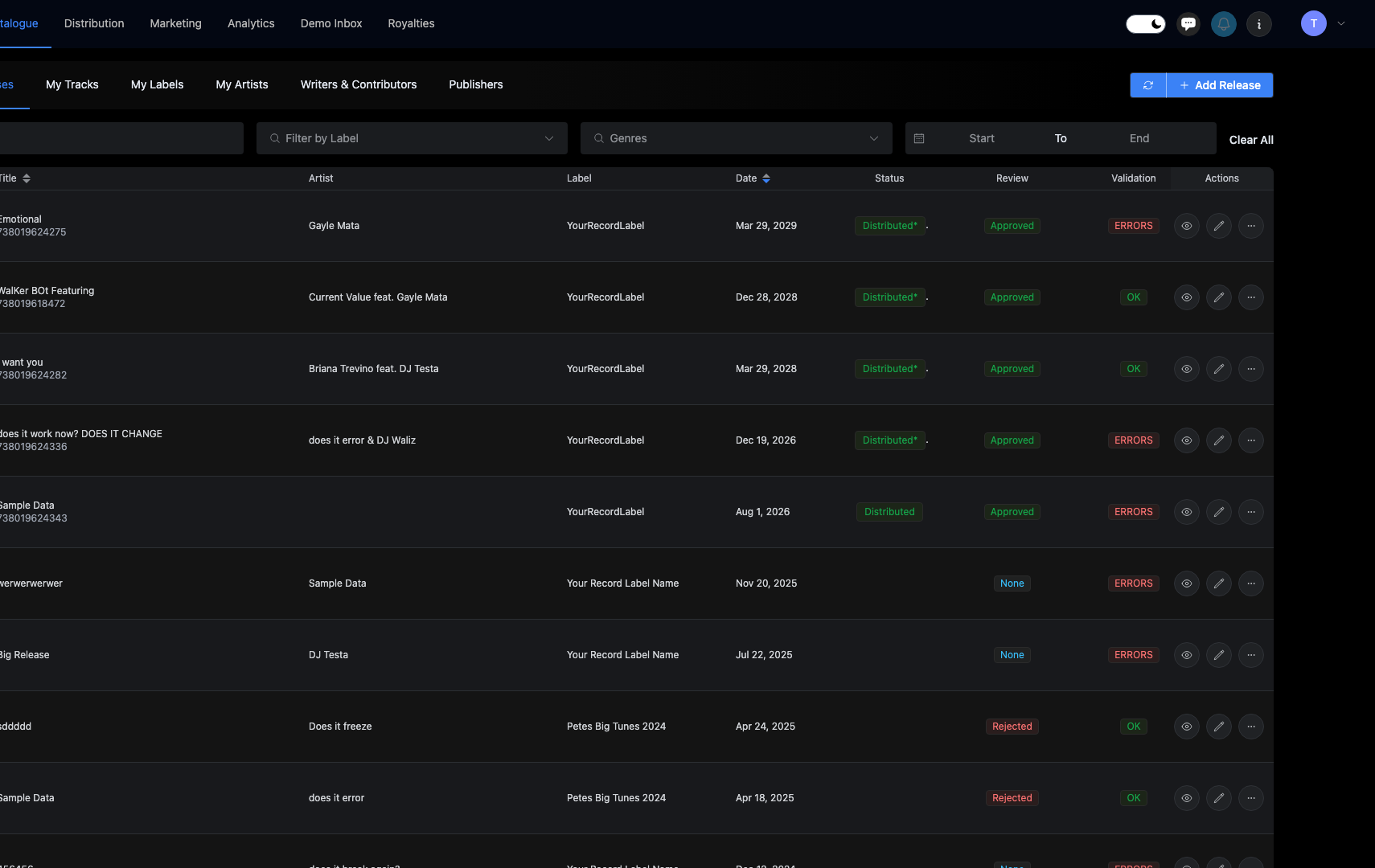
The Releases List
Section titled “The Releases List”Most of your time will be spent in Catalogue > My Releases. Here’s how to use it effectively.
List View
Section titled “List View”The releases list shows:
- Cover artwork (thumbnail)
- Release title and artist
- Release type (Single, EP, Album)
- Release date
- Status
- Actions (Edit, View, etc.)
Filtering and Sorting
Section titled “Filtering and Sorting”Use the filters above the list to find specific releases:
| Filter | Options |
|---|---|
| Status | Draft, Pending, Approved, Live, etc. |
| Release Type | Single, EP, Album, Compilation |
| Date Range | Custom date range |
| Artist | Filter by specific artist |
| Label | Filter by label (if you have multiple) |
Sorting Options
Section titled “Sorting Options”Click column headers to sort by:
- Release date (newest/oldest)
- Title (A-Z)
- Status
- Date created
Notifications and Alerts
Section titled “Notifications and Alerts”LabelGrid keeps you informed about important events.
Notification Types
Section titled “Notification Types”| Type | What It Means |
|---|---|
| Review Complete | Your release has been approved or needs changes |
| Delivery Update | Status change on a streaming platform |
| Royalty Report | New earnings report available |
| System Alert | Important platform updates |
Managing Notifications
Section titled “Managing Notifications”- Click the bell icon in the top navigation to see recent notifications.
- Go to Settings > Notifications to customize which alerts you receive by email.
Recommendation: Keep “Review Complete” and “Delivery Update” notifications enabled so you know when your music goes live.
Help and Support
Section titled “Help and Support”Need assistance? LabelGrid provides several help options:
In-App Help
Section titled “In-App Help”- ? icon - Contextual help for the current page
- Tooltips - Hover over fields to see explanations
- Documentation - Links to detailed guides
Getting Support
Section titled “Getting Support”| Option | Best For |
|---|---|
| Help Center | How-to guides and FAQs |
| Support Chat | Quick questions |
| Email Support | Detailed issues requiring investigation |
Access support from the Help menu in the top navigation.
Customizing Your View
Section titled “Customizing Your View”Display Preferences
Section titled “Display Preferences”You can adjust how information displays:
-
Go to Settings > Preferences.
-
Configure:
- Date format (MM/DD/YYYY or DD/MM/YYYY)
- Currency display
- Time zone
- Items per page in lists
Saved Filters
Section titled “Saved Filters”If you frequently use the same filter combination:
- Apply your filters in the releases list.
- Click Save Filter.
- Name your filter (e.g., “Pending Singles”).
- Access saved filters from the dropdown next time.
Mobile Access
Section titled “Mobile Access”LabelGrid works on mobile devices, though some features are optimized for desktop.
What Works Well on Mobile
Section titled “What Works Well on Mobile”- Checking release status
- Viewing notifications
- Reading royalty reports
- Monitoring deliveries
Better on Desktop
Section titled “Better on Desktop”- Creating and editing releases
- Uploading tracks and artwork
- Detailed analytics
- Bulk operations
Dashboard Tips
Section titled “Dashboard Tips”Stay Organized
Section titled “Stay Organized”- Complete releases fully before starting new ones - drafts can pile up
- Use consistent naming - helps you find things later
- Check action items daily - don’t let pending tasks pile up
Monitor Effectively
Section titled “Monitor Effectively”- Review delivery status after submitting releases
- Check royalty reports monthly
- Read announcements for platform updates that might affect you
Work Efficiently
Section titled “Work Efficiently”- Learn keyboard shortcuts - speeds up common tasks
- Use filters - don’t scroll through long lists
- Bookmark frequently used pages - quick access to your most-used features
Next Steps
Section titled “Next Steps”Now that you know your way around, you’re ready to:
- Create Your First Release - Put your music on streaming platforms
- Distribute a Release - Submit for distribution
- Monitor Deliveries - Track your release progress
Questions about the dashboard? Contact our support team and we’ll help you navigate.
Not using LabelGrid yet?
Everything you just read about is available on our platform.
See what LabelGrid can do →